Management or channel partner
Your job: set the rates, bring the client's requirement, send approved profiles to the client, record the client's answer, the offer and the joining. Your sourcing team does the sourcing and your BU Head screens and approves.
The flow in one line: Rate card → Project → Positions → (team sources and interviews) → Approved profile → Send to the client → Client answer → Offer → Joined.
1Start on the Dashboard
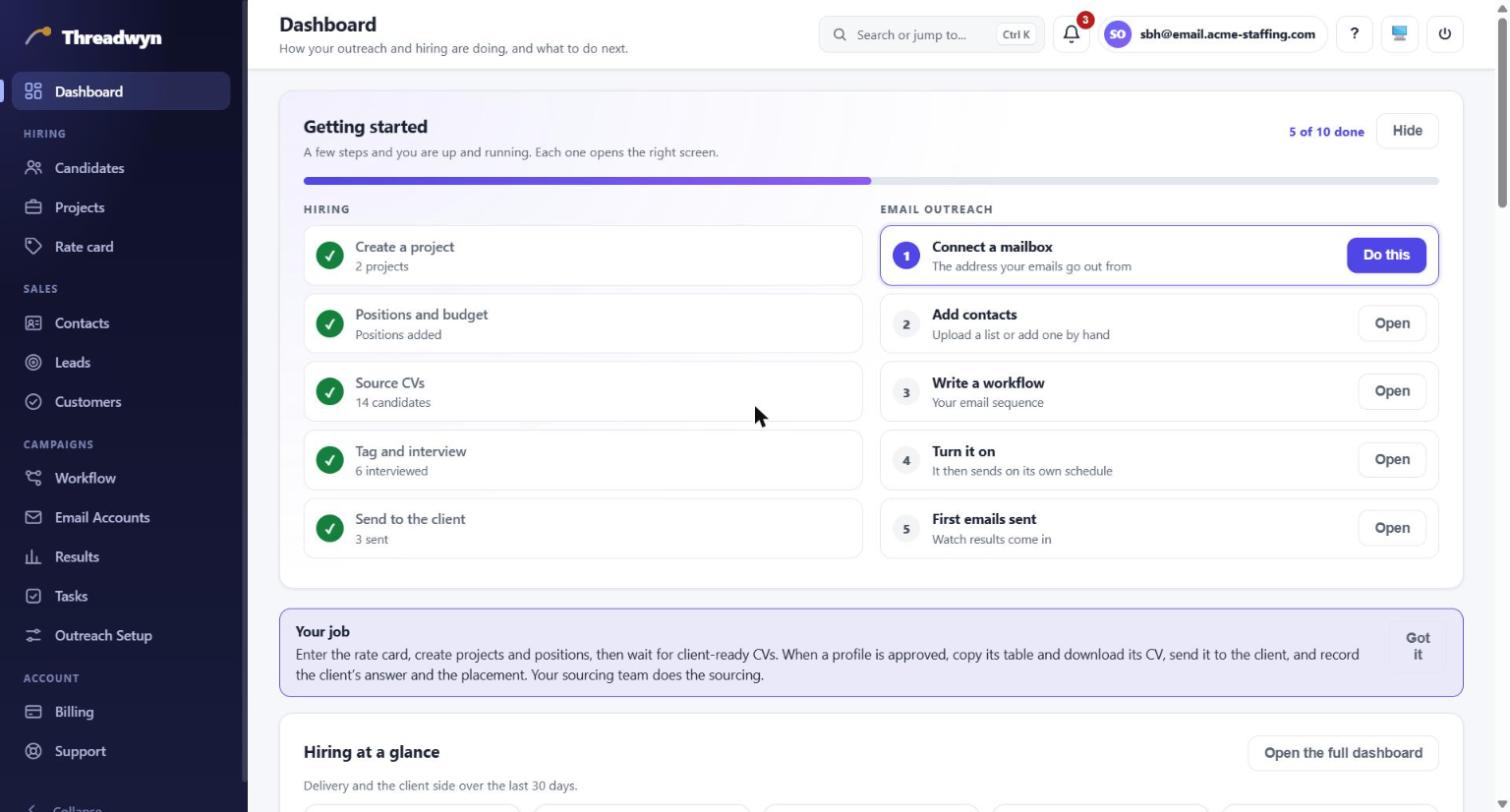
DashboardThe Getting started card ticks itself as you go (it reads your real data, so a step is only done when it really is). The Hiring side has five steps: create a project, add positions and a budget, source CVs, tag and interview, send to the client.
The purple Your job note tells you what is expected of your role. Press Got it to hide it, or Hide on the card to put it away; you can bring it back from the search box (Ctrl K).
2Fill in the Rate card
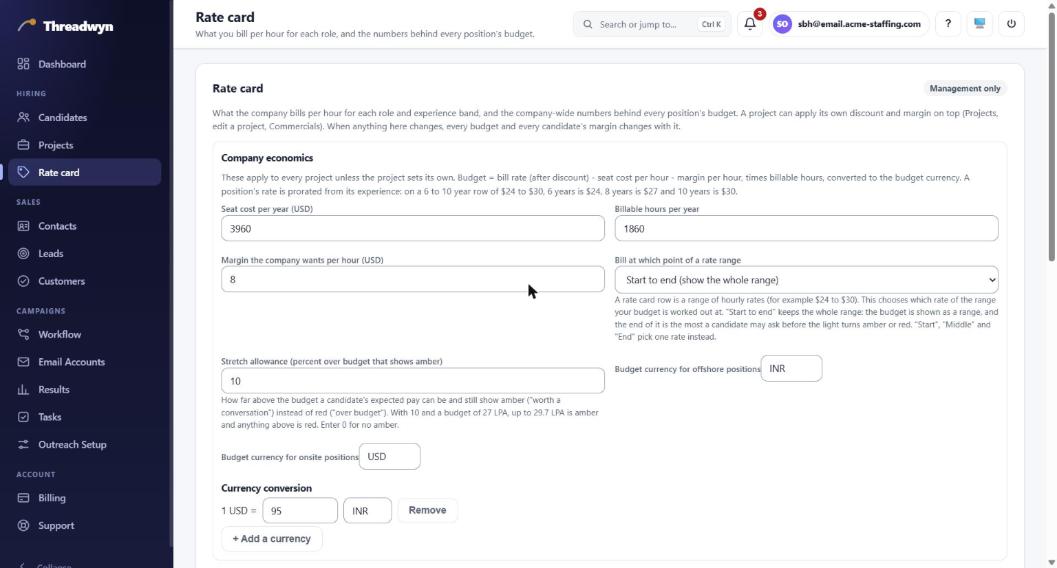
Hiring → Rate cardThe Rate card is for the whole company, so it has its own place in the menu. Every position's budget and every candidate's margin come from it. Only you change it; the BU Head can see it, read only.
- Company economics: seat cost per year, billable hours per year, the margin you want per hour, the exchange rate between currencies.
- Bill at which point of a rate range: a rate card row is a range (for example $24 to $30 an hour). "Start to end" shows the whole range as the budget.
- Stretch allowance: how far over budget a candidate's pay can be and still show amber ("worth a conversation") instead of red.
- Below that, the table of roles and experience bands with the hourly range for onsite and offshore.
3Create a project for the client
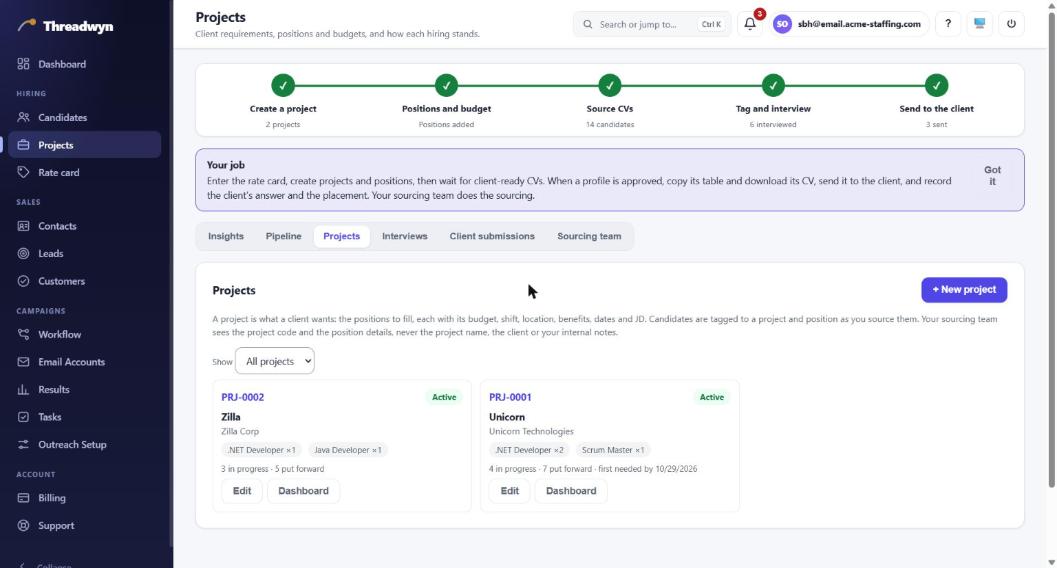
Hiring → Projects → ProjectsA project is what one client wants. Press + New project and give it a name, the client, and your general requirements. The internal notes and the client name are only for you; your sourcing team sees just the project code (PRJ-0001) and the position details.
4Add the positions and the budget
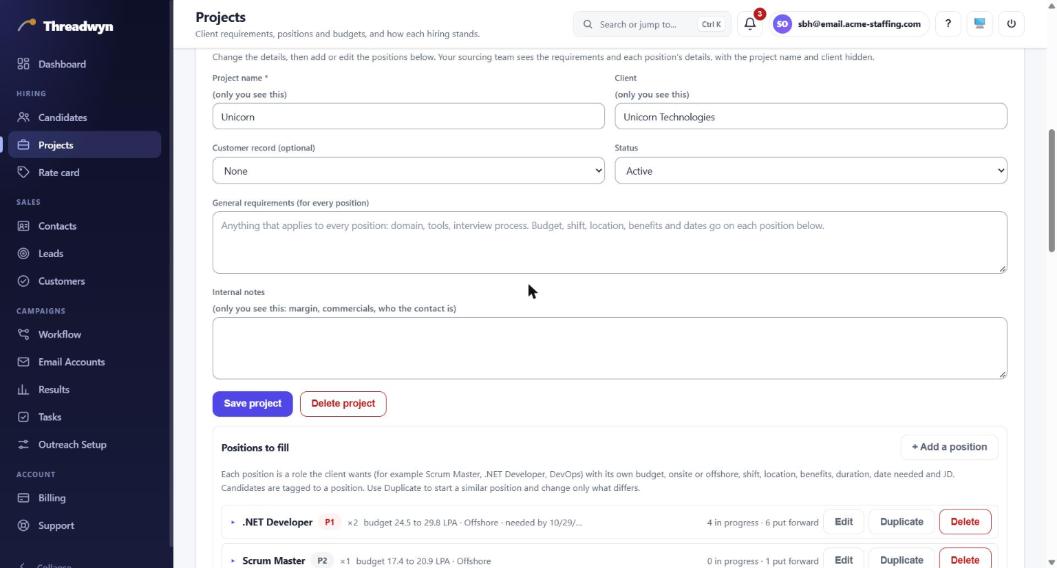
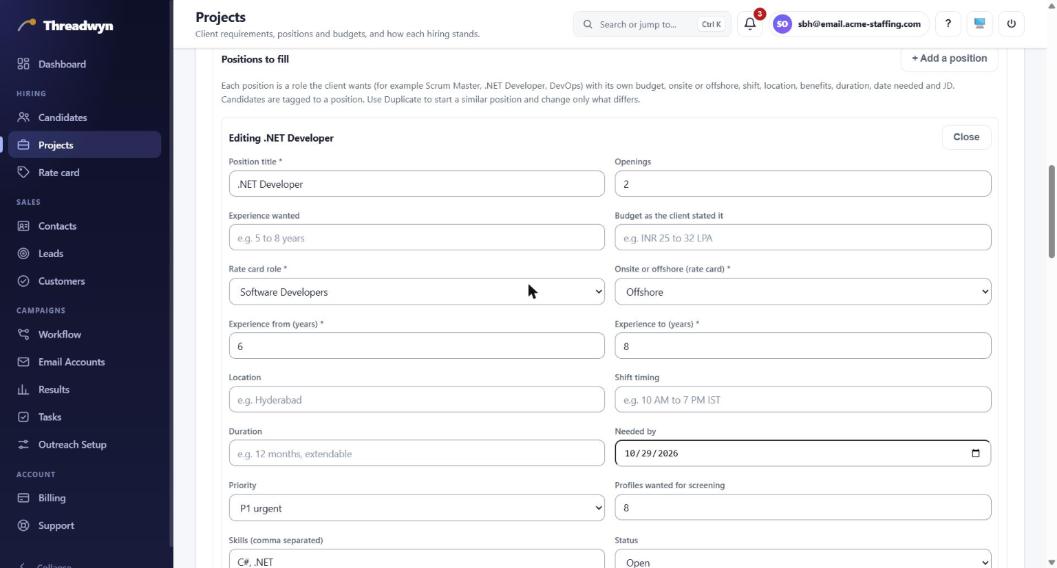
Projects → Edit a project → Positions to fillEach role the client wants is a position. A saved position shows as one compact row; click it (or Edit) to open it. Duplicate makes a copy to change only what differs.
- Required: the rate card role, onsite or offshore, and the experience in years from and to. The budget is worked out from them.
- Fill in the openings, location, shift, duration, needed-by date, benefits and the JD.
- Priority (P1 urgent to P3) and Profiles wanted tell the sourcing team where to put their effort.
5Set the skills to rate (self-rating template)
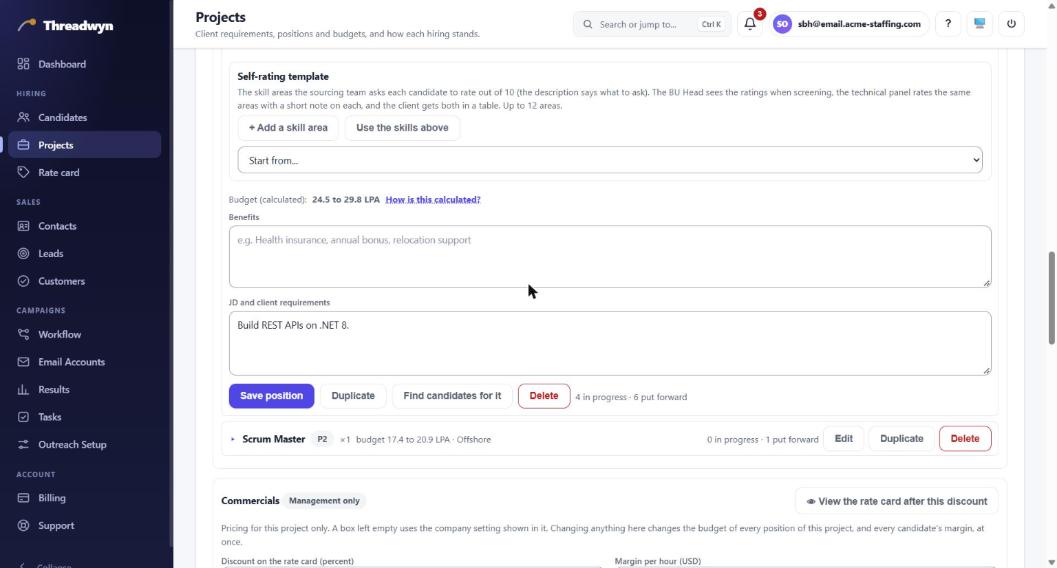
Position → Self-rating templateList the skill areas the candidate should rate themselves on out of 10 (up to 12). Add a short description of what to ask. The sourcing team collects the self-ratings, the technical panel rates the same skills, and the client later gets both in one table. Start from… offers ready-made lists, and Use the skills above copies the position's skills.
The same screen shows the calculated Budget and a link, "How is this calculated?". The Commercials section below it lets one project apply its own discount or margin on top of the rate card.
6Follow the Pipeline
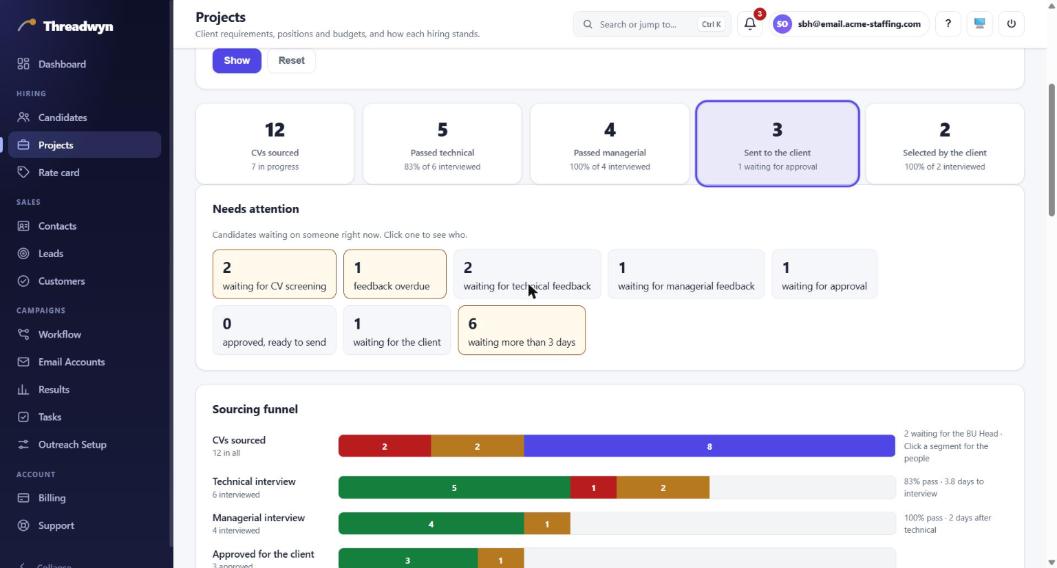
Projects → PipelineThe Pipeline shows how people are moving: sourced, technical interview, managerial interview, sent to the client, the client's decision. Click any tile or number and the list of people behind it opens right below, with the tile you clicked kept highlighted so you know which list you are looking at. Close clears it. The filters at the top (project, position, dates, who sourced) apply to everything.
Needs attention lists people waiting on someone right now, for example "waiting for CV screening" or "waiting for the client".
7Look after the candidates
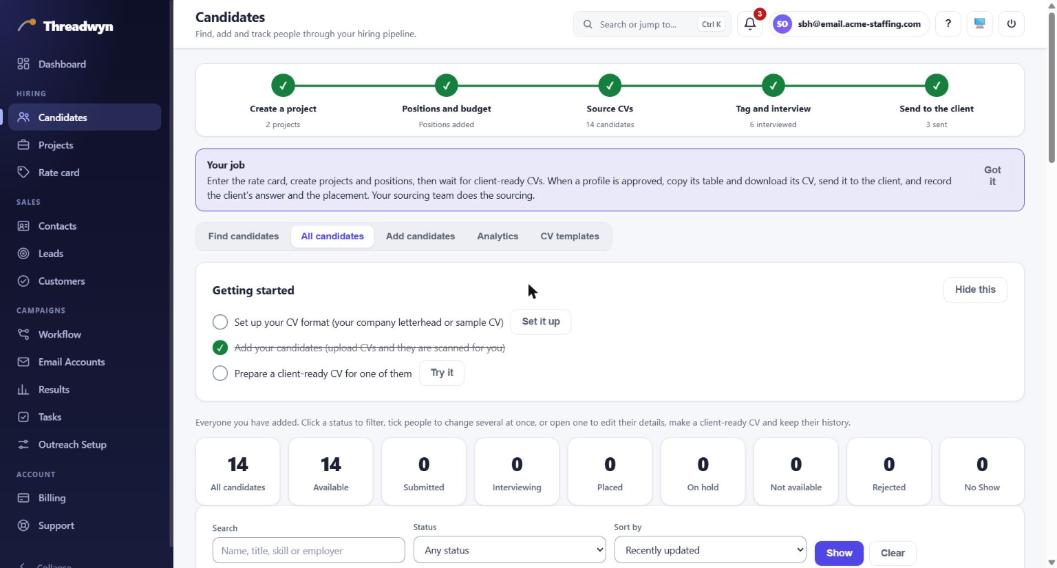
Hiring → CandidatesEveryone the team adds is here. Find candidates searches by skills and requirement, All candidates shows the status tiles (available, submitted, interviewing, placed, on hold, not available, rejected, no show), Add candidates uploads CVs, Analytics shows trends and CV templates sets your client-ready CV format (your letterhead, or a sample you already use).
8Read a candidate's journey
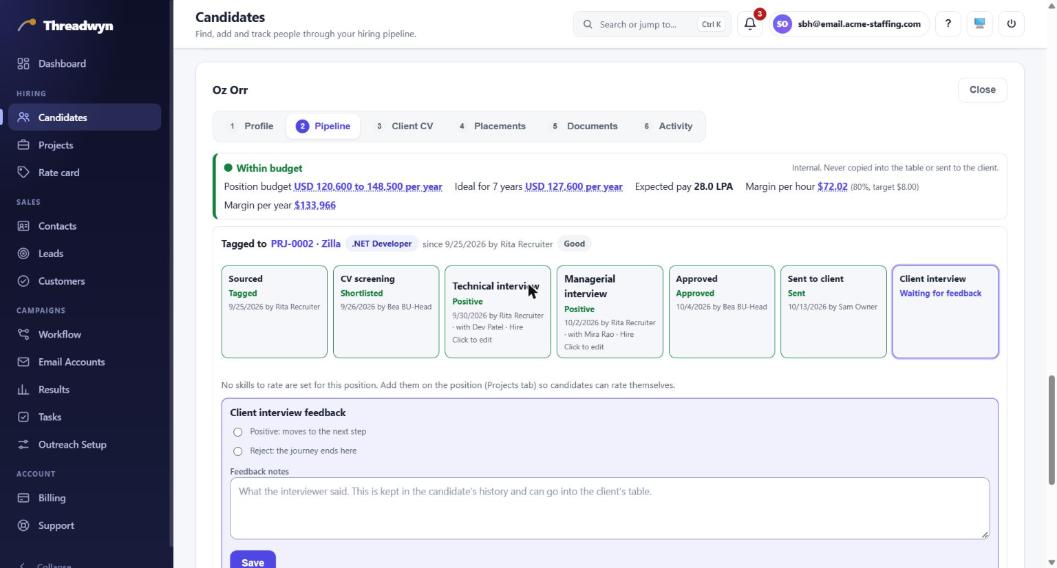
Candidates → Open → PipelineThe stepper shows each stage: sourced, CV screening, technical interview, managerial interview, approved, sent to the client, client interview. The green, amber or red bar on top is your budget light for this candidate (internal; it is never copied or sent to the client): green is within budget, amber is over by no more than your stretch allowance, red is over budget. It also shows the margin per hour.
You can record the client's feedback here, then the offer and the joining.
9Send approved profiles to the client
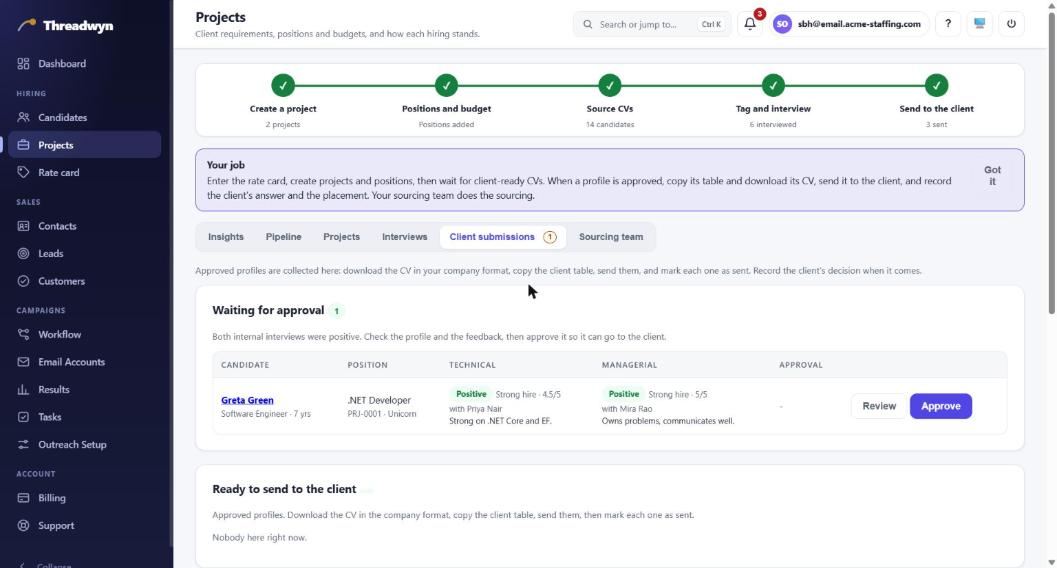
Projects → Client submissionsWhen the BU Head approves a profile it appears here. For each one:
- Client CV makes the CV in your company format (as a PDF).
- Copy table copies the client table (and the skill ratings table) so you can paste it into your email.
- Send it to the client yourself, then press Mark as sent.
- When the client answers, record it. Then record the offer (offered, accepted or declined) and the joining (joined or backed out). Everyone on the project sees the result.
10Check Insights
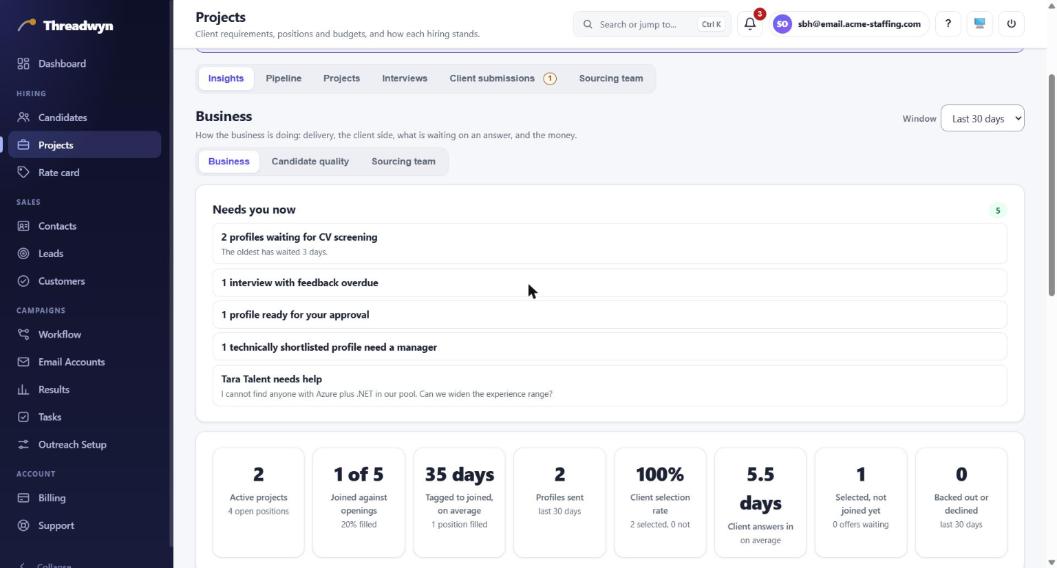
Projects → InsightsThree views: Business (delivery, the client side, revenue), Candidate quality and Sourcing team. Needs you now lists what is waiting on you. Use the window selector for the last 7, 30 or 90 days.
BU Head
Your job: screen the CVs the sourcing team sends, choose a technical panel and a manager (or interview yourself), and approve the strong profiles for the client. You have management's authority over hiring only; campaigns, billing and the rest of the account are not part of your login.
Your menu has Candidates, Projects, Rate card and Support.
1Open Insights, Candidate quality
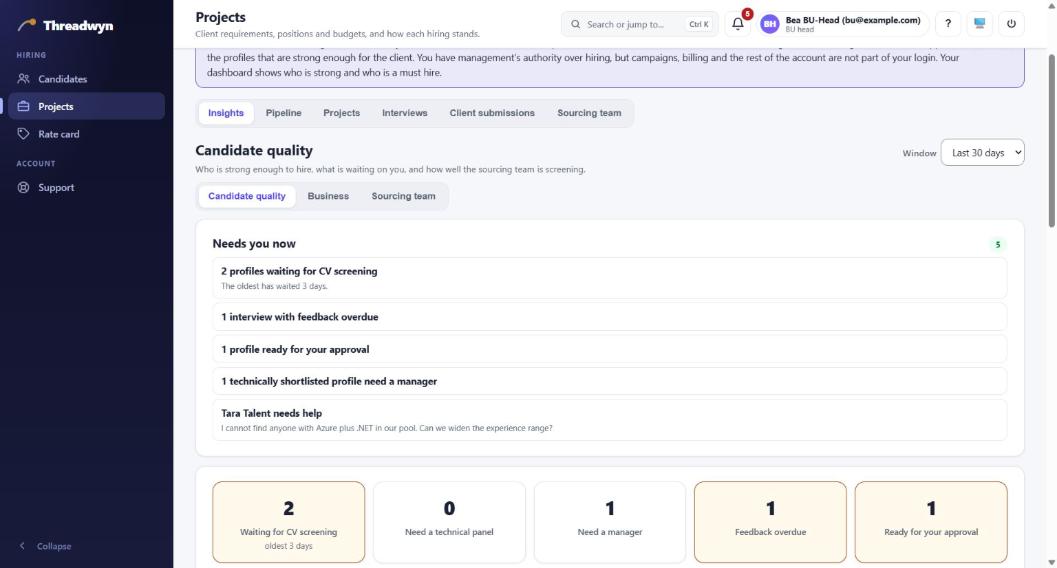
Projects → InsightsNeeds you now is your to-do list: CVs waiting for screening, profiles that need a technical panel or a manager, feedback that is overdue, profiles ready for your approval. Click any line or tile to go to the people. The page also shows who is strong and who is a must-hire for each position.
2Screen the CVs
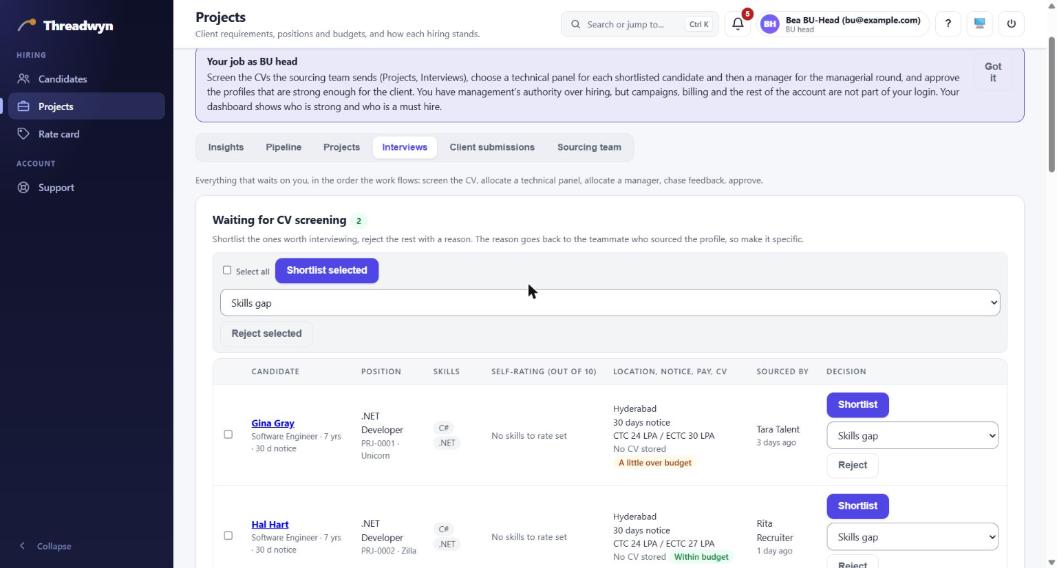
Projects → Interviews → Waiting for CV screeningFor each profile you see what you need to decide: skills, the candidate's self-ratings out of 10, location, notice period, current and expected pay (CTC and ECTC), whether a CV is stored, and a budget note (within budget, a little over, over).
- Shortlist (or tick several and press Shortlist selected) sends the profile on to interview.
- Reject needs a reason, for example "Skills gap". The reason goes back to the teammate who sourced the profile, so make it specific. A rejection can be reversed until the technical interview is recorded.
- Missing self-ratings do not block you; you can screen without them.
Then, in the same Interviews screen
- Allocate a technical panel for each shortlisted candidate from your panel directory (people who interview; they do not need a login). Your sourcing team then schedules the time and records the panel's feedback, including the 1 to 10 skill ratings and a recommendation (strong hire, hire, hold).
- Allocate a manager for the managerial interview, or conduct it yourself. After a positive technical interview the profile waits here.
- Approve a profile after a positive managerial interview. Only approved profiles can go to the client. You can also send it to the client yourself from Client submissions.
- Open Rate card any time to see the company rates behind each budget.
Sourcing Team Head
Your job: take the requirement from management, give your team their positions, keep them on the priorities, answer their questions and help requests, and approve or turn down flags (proxy, blocked, blacklisted). Your dashboard shows how each teammate is doing and whether effort matches priority.
1Read the Sourcing team dashboard
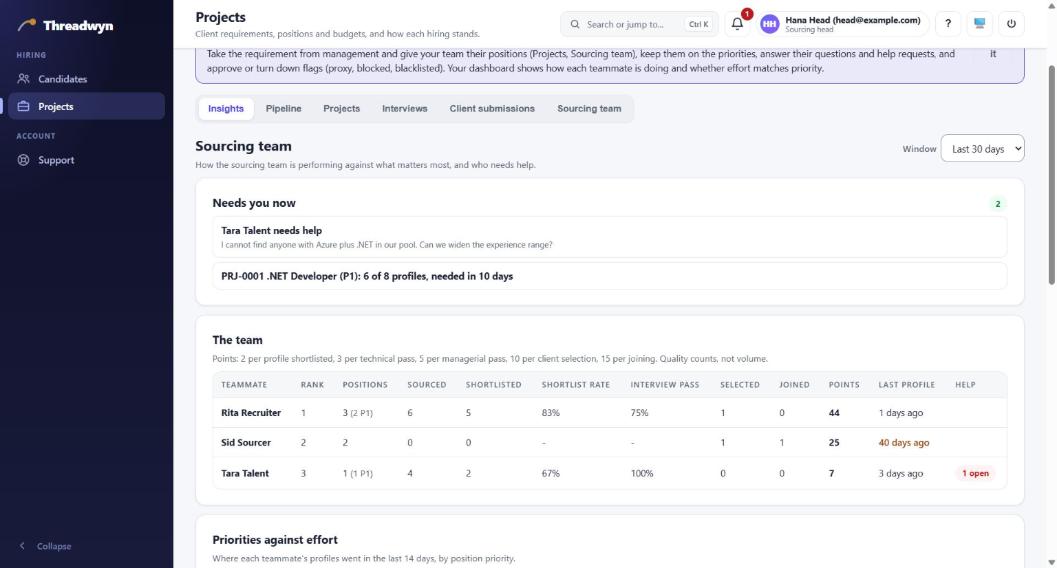
Projects → InsightsNeeds you now lists help requests and positions that need a look (for example a P1 position with too few profiles that is needed soon). The team table ranks everyone: positions, profiles sourced, shortlist rate, interview pass rate, selected, joined, points and when they last added a profile. Points reward quality, not volume: 2 for a shortlist, 3 for a technical pass, 5 for a managerial pass, 10 for a client selection, 15 for a joining.
Priorities against effort shows, per person, where their last 14 days of profiles went, so you can see whether P1 positions are getting the effort.
2Create logins and assign work
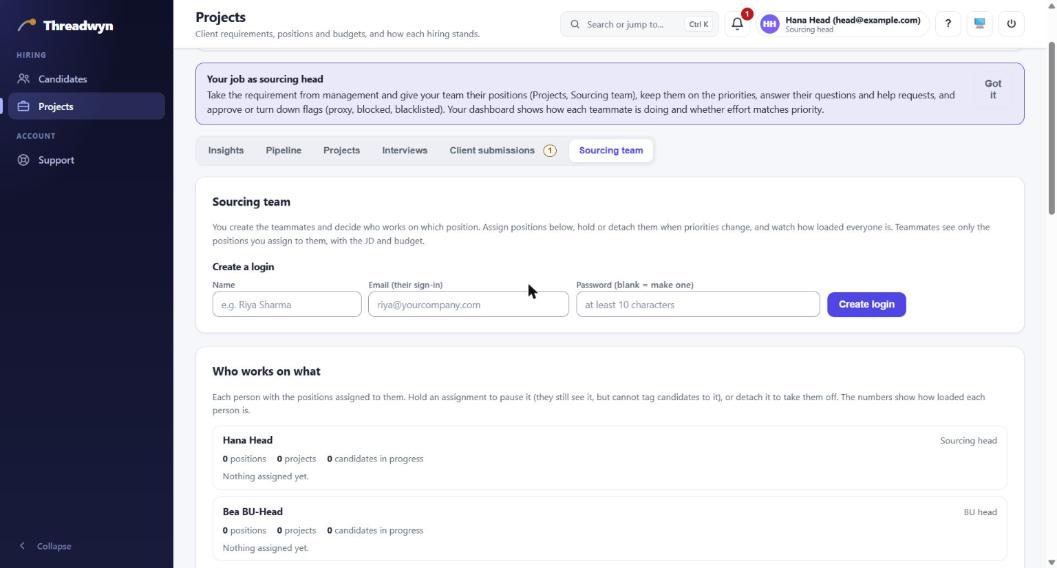
Projects → Sourcing team- Create a login: a name, an email (their sign-in) and a password (leave it blank to have one made). The sign-in details are shown once, with a button to copy them. You can create teammates; a login for someone senior to you is made by management.
- Who works on what: each person with their positions and how loaded they are. Hold pauses an assignment (they still see it but cannot tag candidates to it), Resume restarts it, Detach takes them off.
- Assign work: tick one or more people, tick the positions (or "all open positions" for a whole project) and press Assign. A teammate sees only what is assigned to them.
- Flag requests: a teammate proposes a candidate as a proxy, blocked or blacklisted with a reason. Approve or reject it. Blocked and blacklisted candidates cannot be tagged to projects.
Also in your job
- Help requests: when a teammate asks for help (for example "I cannot find anyone with Azure plus .NET"), answer it from your dashboard. Each request is answered once.
- Position comments: a question and answer thread on each position keeps the team aligned.
- The Interviews queue is visible to you read-only; screening and approving profiles is the BU Head's job.
Sourcing Team member
Your job: read the JD and budget of the positions assigned to you, source candidates and tag them, then follow them through the interviews. The BU Head screens each CV and allocates the technical panel and a manager; you coordinate with them, record their feedback and keep in touch with the candidate until they join.
Your menu has Candidates, Projects and Support. You see the project code and the position details, never the client's name.
1Start on your dashboard
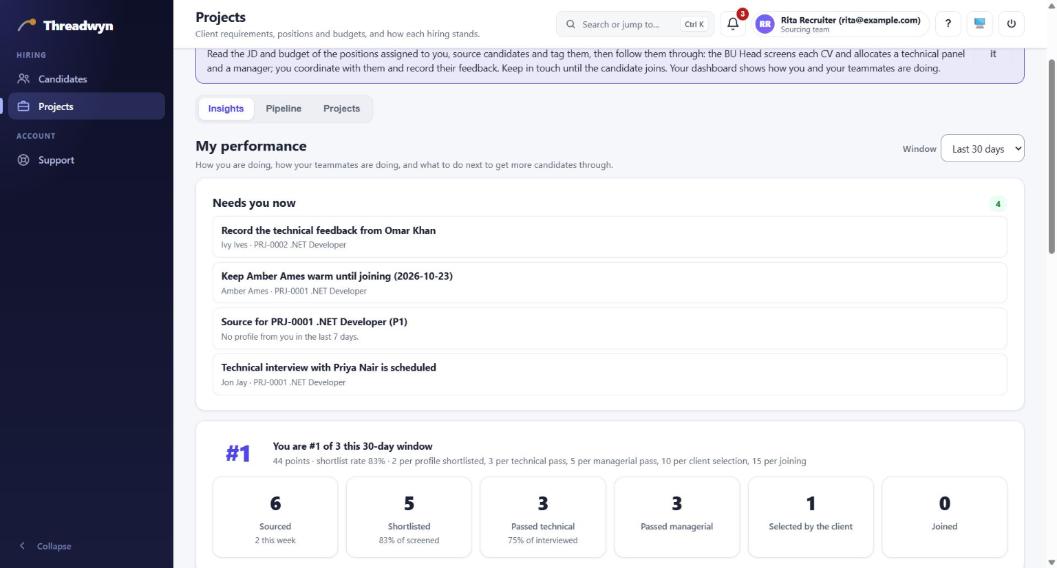
Projects → Insights ("My performance")Needs you now is your to-do list: record feedback that is due, keep a selected candidate warm until joining, source for a priority position where you have nothing recent. Below it you see your rank, your points and the whole leaderboard. Quality counts, not volume: a shortlist, a pass and a joining all earn points.
2Add candidates and tag them
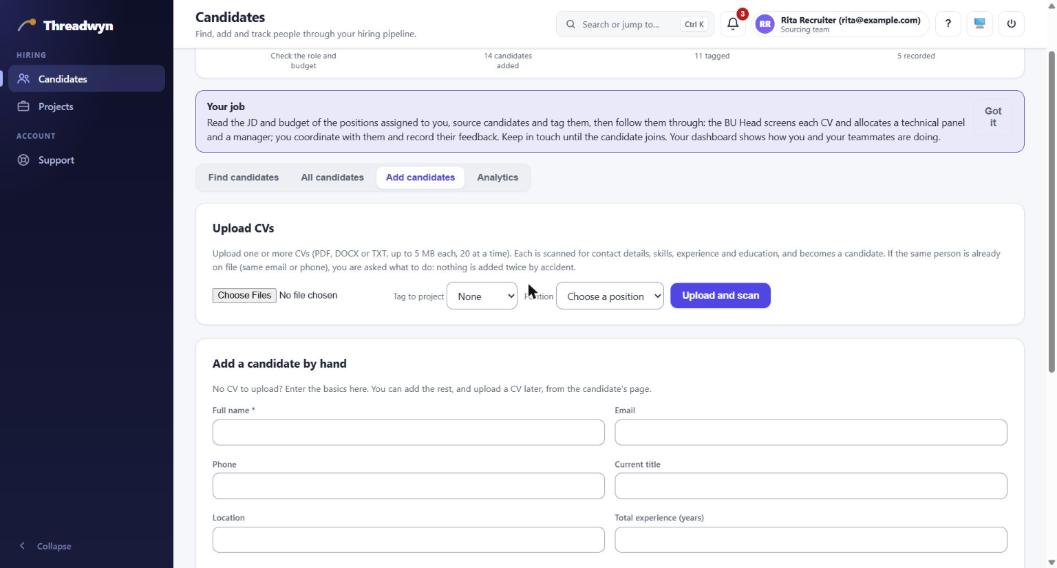
Candidates → Add candidatesUpload CVs (PDF, DOCX or TXT, up to 20 at once). Each CV is read for contact details, skills, experience and education, and becomes a candidate. Choose the project and position in the same step to tag them at once. If the person is already on file (same email or phone) you are asked what to do, so nothing is added twice. Add a candidate by hand is below if you have no CV.
Check the pay, notice period and reason for change; the client table uses them.
3Follow each candidate's journey
Candidates → Open → Pipeline- Collect the self-ratings. Use the ready message ("Copy request for the candidate") to ask the candidate to rate themselves out of 10 on the position's skills, then type them in. The BU Head sees them when screening.
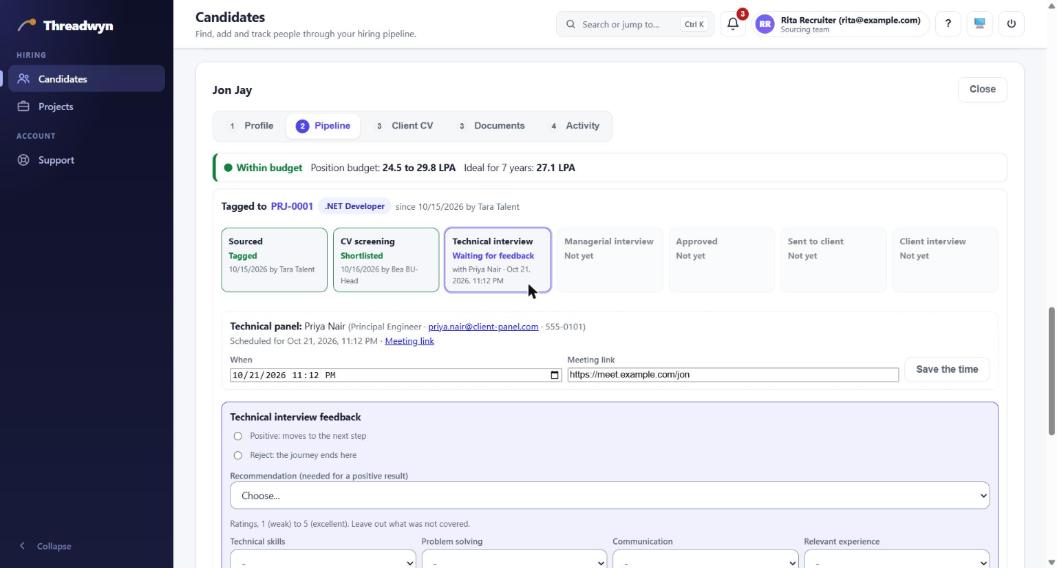
- After the BU Head shortlists, the technical panel is allocated. Enter the date and the meeting link (Save the time).
- Record the feedback the panel gives you: positive or reject, a recommendation (needed for a positive result), the scores out of 10 for each area, the 1 to 10 skill ratings with a short note on each skill, and the notes. You can correct it later until the next stage is recorded.
- The managerial interview works the same way. After it, the BU Head approves and management sends the profile to the client.
- Once the client selects the candidate, record the offer and the joining, and stay in touch until they join.
Useful extras
- Documents: keep a candidate's other files (ID proof, payslips, a resignation email) on their Documents tab. They are never part of the client's CV.
- Flag or report: propose that a candidate is a proxy, blocked or blacklisted; your Head decides.
- Need help? Ask your Head from your dashboard, or use the Support tab for a problem with Performdesk itself.
- The bell at the top tells you what changed (a result, an approval, a reminder).
Things that work the same for everyone
| Search or jump to… | Press Ctrl K (or click the search box at the top) to jump to a screen, start something new or find a candidate by name. |
|---|---|
| The ? button | Press it, then click any field or button to read what it is for. |
| Support | Raise a ticket from the Support tab. The Super Admin sees it and replies there; you see only your own tickets. |
| Dark or light | The monitor icon at the top switches between System, Light and Dark. |